Transactions
Transactions are the heartbeat of Finzen. Every purchase, payment, transfer, or deposit you log builds a real-time picture of your financial life — feeding your budget, your reports, and your net worth all at once.
Adding a Transaction
There are two ways to add a transaction:
- From anywhere — click the Add Transaction button in the sidebar (desktop) or the + icon in the top-right corner (mobile). This opens a modal where fields appear selectively based on what you enter.
- From the Transactions page — click Add Transaction in the top-right of the page to enter a transaction inline, with all fields visible at once.
Both methods capture the same information.
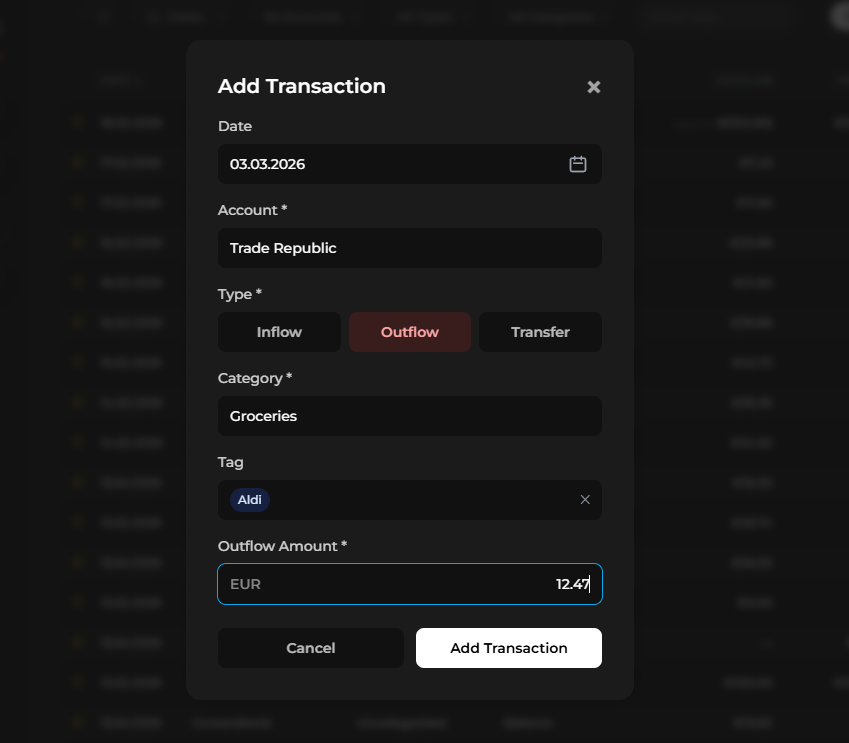
Modal transaction input
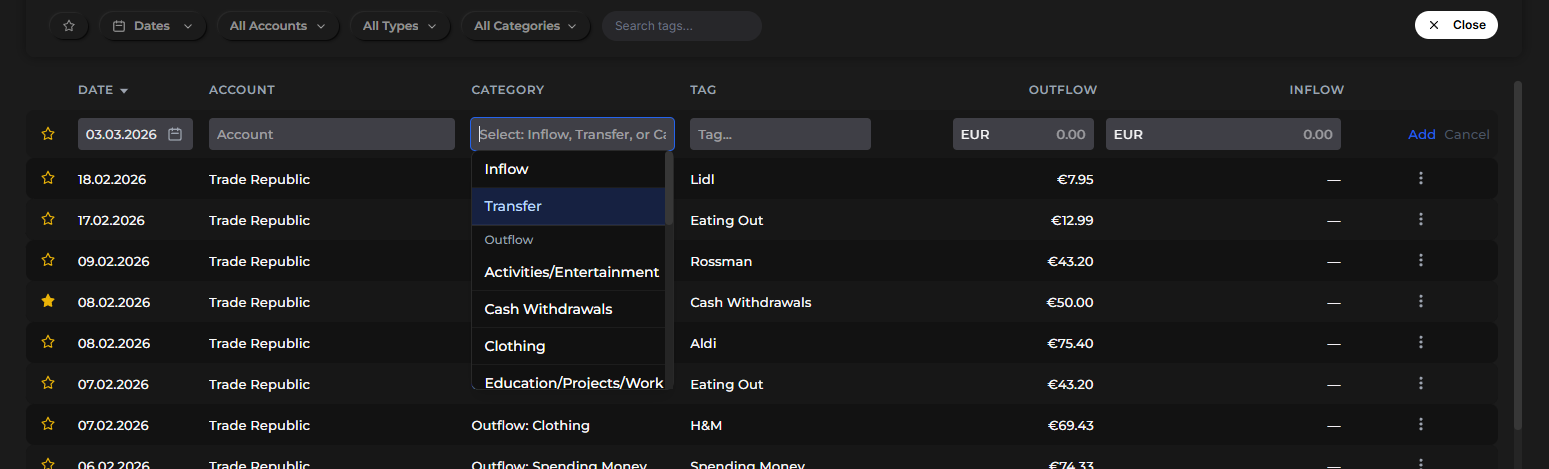
Inline transaction input
Fields
| Field | Details |
|---|---|
| Date | Defaults to today. You can use past or future dates. |
| From account | Dropdown of all your accounts. |
| Type | Outflow, Inflow, or Transfer. |
| Category / To account | Depends on type — see below. |
| Tag / Income source | Optional. Used for deeper organization and reporting. |
| Amount | The transaction amount. |
Transaction Types
Outflow
An expense — money leaving an account.
- From a budget account: select a category (your envelope subcategories) and, optionally, a tag for extra detail. For example, category Food, tag McDonald's. If no tag is added, the category alone is used throughout reports.
- From an investment or off-budget account: no category is available (these don't affect the budget). The transaction is automatically tagged off-budget — this cannot be changed.
Categories are your broad budget envelopes. Tags let you slice within them. Category Restaurants, tag Date night — that kind of pairing tells a much richer story in your spending reports.
Inflow
Income — money coming into an account.
Select Inflow, choose the receiving account, and optionally enter an income source (e.g. "Salary", "Freelance", "Side project"). This works like a tag — it shows where your money came from, including in the Cash Flow Sankey diagram.
The same rules apply for off-budget and investment accounts: no category, automatically tagged off-budget.
Transfer
Money moving between two of your accounts.
Select Transfer, then choose both a From account and a To account. The category field is replaced by the To account selector.
Transfers work differently depending on which accounts are involved:
Between two cash/budget accounts
When both accounts share the same primary currency, the amounts are pre-filled as a 1:1 transfer. You can edit either side before saving.
Buying an investment asset
Transfer from a budget account to an investment account. Enter:
- Out: the fiat amount you spent (e.g. $100)
- In: the quantity of the asset you received (e.g. 0.2 ETH)
Finzen uses these two amounts to calculate the price you paid per unit — which feeds directly into your profit & loss and portfolio performance calculations.
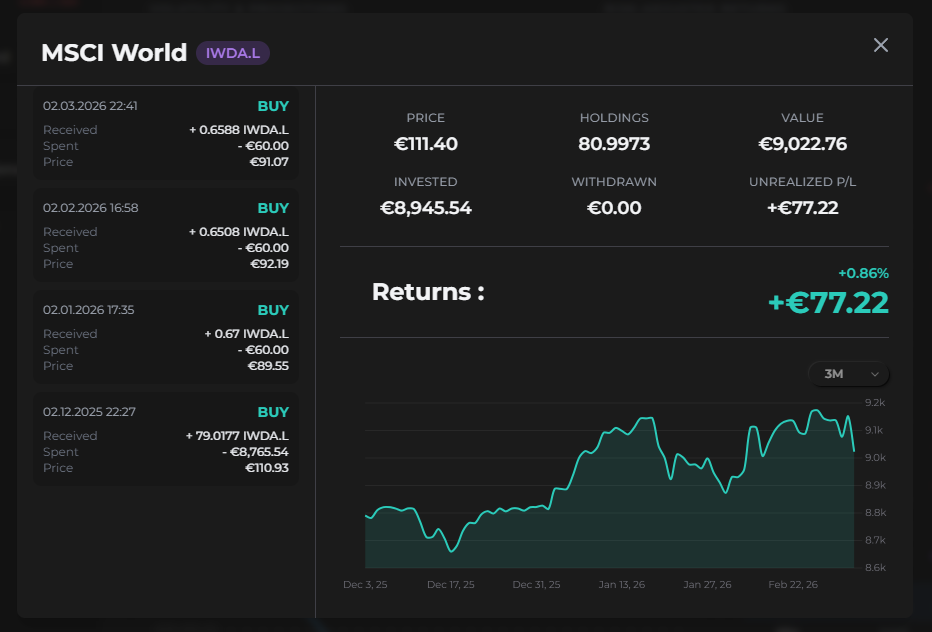
Transfers between budget accounts and investment accounts are automatically classified as buys or sells. You can view them by selecting an asset in the sidebar of the Portfolio report.
Selling an investment asset
Transfer from an investment account to a budget account. Enter:
- Out: the quantity of the asset sold (e.g. 0.2 ETH)
- In: the fiat amount you received (e.g. $130)
This is used in your realized gain/loss calculations in the Portfolio report.

There's no separate "buy" or "sell" button. The direction of the transfer — which account is the From and which is the To — determines whether it's a purchase or a sale.
How transfers affect the budget
Finzen automatically classifies transfers based on the accounts involved:
| Transfer | Budget classification |
|---|---|
| Budget → off-budget account (positive balance) | Budgeted savings |
| Budget → off-budget account (negative balance) | Debt payment — affects the debt category |
| Budget → investment account | Investment outflow |
| Investment account → budget (sale proceeds) | Income from investments |
The Transaction List
The Transactions page shows all your logged transactions in a list.
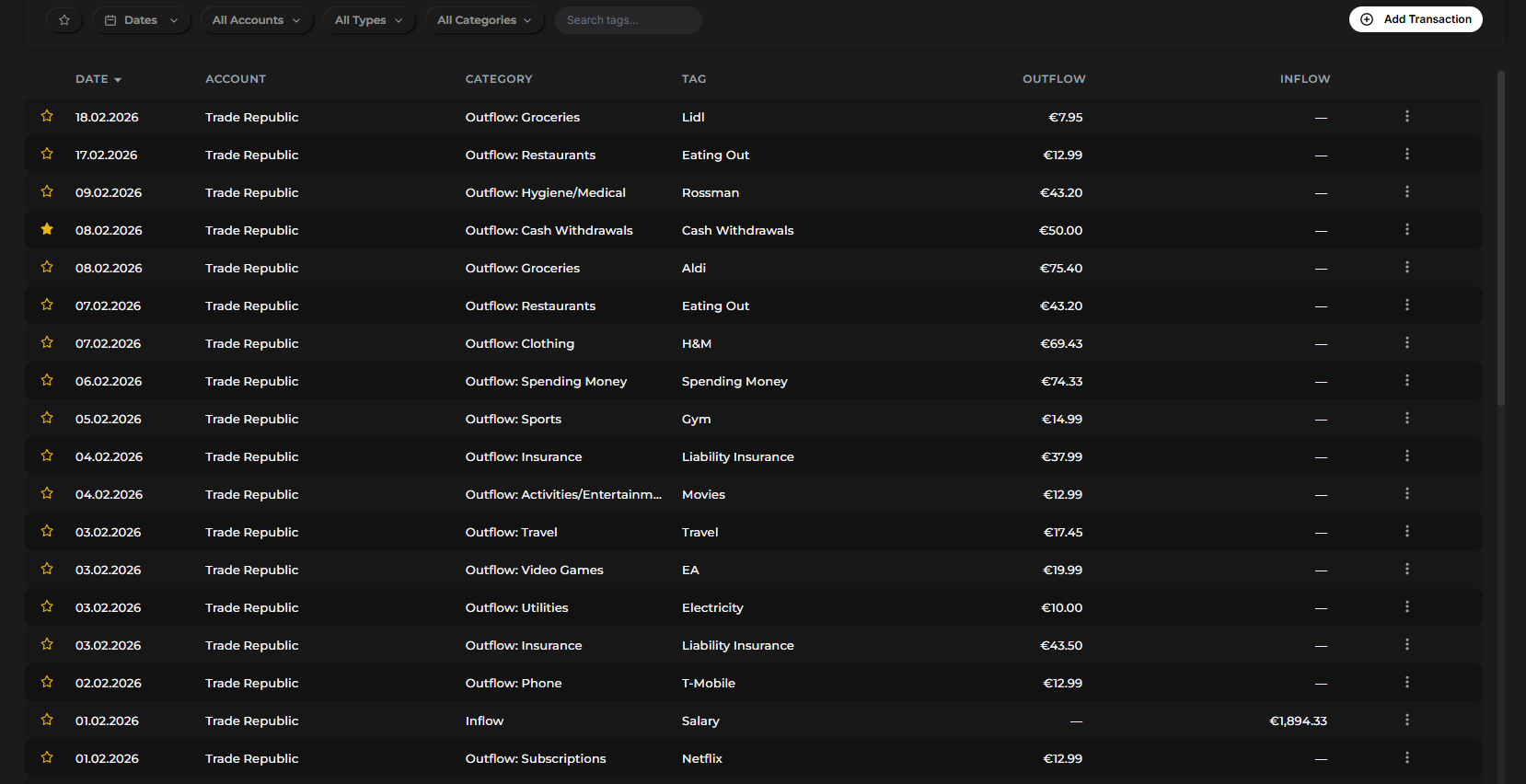
Columns
Each row shows two amount columns: Inflow and Outflow. Most transactions only have one value filled. Transfers show amounts in both columns. In some cases (such as a transaction with a fee), both columns may be populated simultaneously.
Editing and Deleting
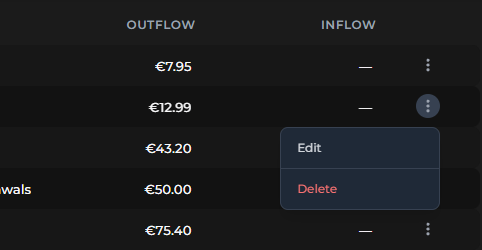
Every transaction can be edited or deleted directly from the list. Click into a transaction to modify it.
Starring
Transactions can be starred to flag them for later. You can then filter the list by starred transactions to quickly find what you've marked.
Filtering
The transaction list supports powerful filtering:
- Date range — view any period of time
- Accounts — filter by one or more accounts
- Type — filter by Inflow, Outflow, or Transfer
- Categories — narrow by budget category
- Tags — search for specific tags
Multiple filters can be active at the same time. When filters are applied, a badge shows how many are active (e.g. 3 filters). Click it to clear all filters and return to the full list.
How the Category and Tag Fields Work
When adding a transaction, the category dropdown lists Inflow and Transfer at the top, followed by all outflow categories in alphabetical order.
The tag field is smart: it suggests the tag you use most frequently with the selected category. If no category has been selected yet, it shows your most frequently used tags overall.
Logging a transaction takes seconds. The real value isn't any single entry — it's the daily habit of engaging with your money. Over time, your transaction history becomes the raw data behind every chart, every budget calculation, and every insight Finzen surfaces for you.
Where to Go Next
- The Budget — understand how your outflow transactions map to envelopes
- Statistics / Cash Flow — see the Sankey diagram powered by your inflows and tags
- Statistics / Spending — analyze spending by category and tag over time