Setup
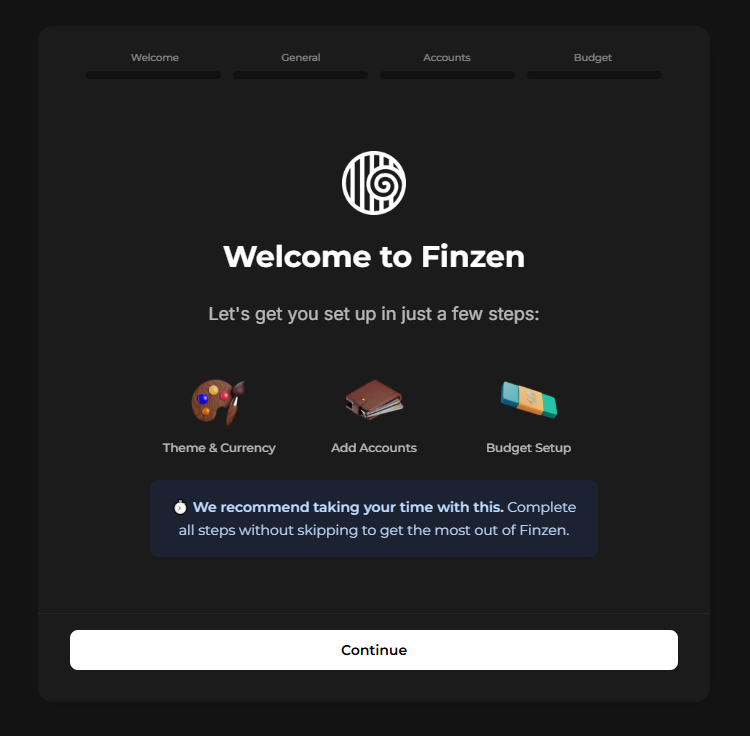
When you first sign in to Finzen, a setup wizard walks you through the essentials: your primary currency, your accounts, and your budget categories. It only takes a few minutes and gives you a fully configured starting point.
Everything you set up here can be edited later — you can always add accounts and categories after the wizard. That said, we recommend completing the wizard in one go. It's the fastest way to get your financial picture set up from the start, and skipping steps means you'll need to do it manually from the dashboard.
The Wizard
The setup wizard takes you through several steps, a few of which are purely informational. This guide covers the most important steps — the ones where you make decisions and set up your Finzen account.
Your Primary Currency
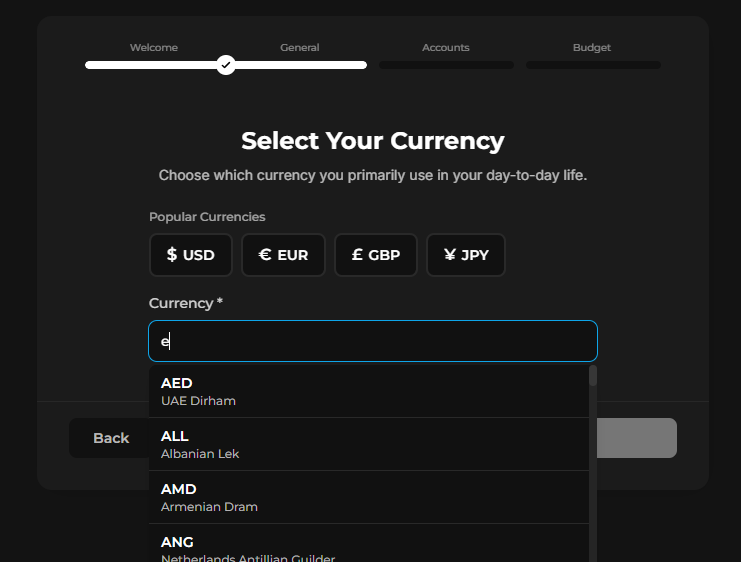
Your primary currency is the foundation of Finzen. Your budget, your net worth, and all your reports are displayed in this currency. Choose the currency you use day-to-day.
You can track accounts held in other currencies — for example, a foreign brokerage or forex account. Everything will still roll up and display in your primary currency.
Your Accounts
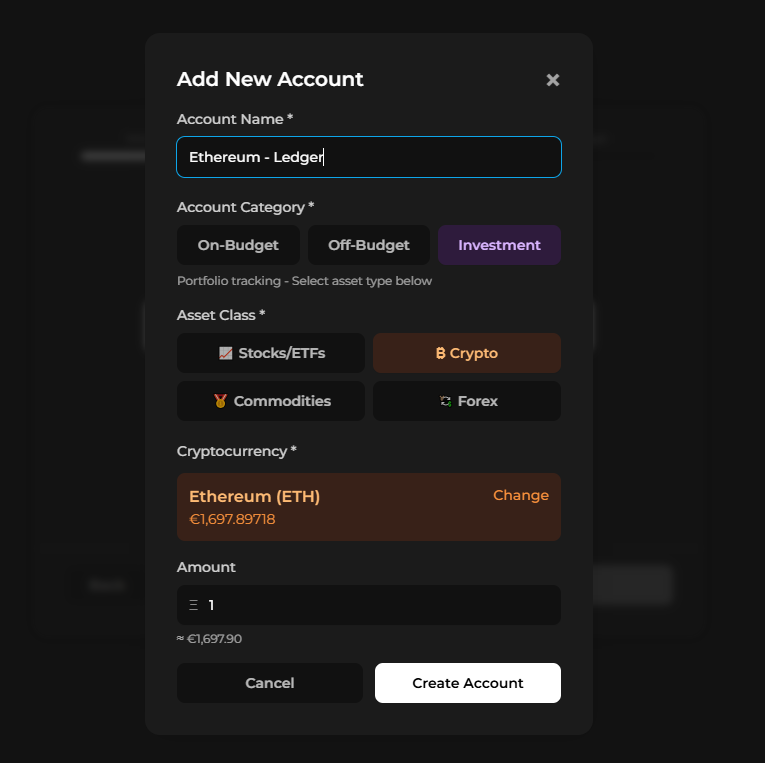
Next, add the accounts where your money lives. For each account you'll fill in:
- Account name — whatever makes sense to you (e.g. "Checking", "PayPal", "Bitcoin Wallet")
- Initial balance — how much is in the account right now
- Account type — how the account fits into your financial picture
Account Types
| Type | What it's for |
|---|---|
| On-budget | Day-to-day spending accounts — checking, cash, credit cards. Transactions from these accounts flow into your envelope budget. |
| Off-budget | Savings accounts, loans, and debts. Tracked for net worth purposes but not connected to your budget. |
| Investment | Brokerage, crypto, and commodity accounts. Tracked in the Portfolio report, separate from the budget. |
If it's where your everyday spending money lives, it's on-budget. If it's a savings account or a loan, it's off-budget. If it holds stocks, ETFs, or crypto, it's an investment account.
Add as many accounts as you like. You can always add more from the Accounts section after setup.
Your Budget Categories
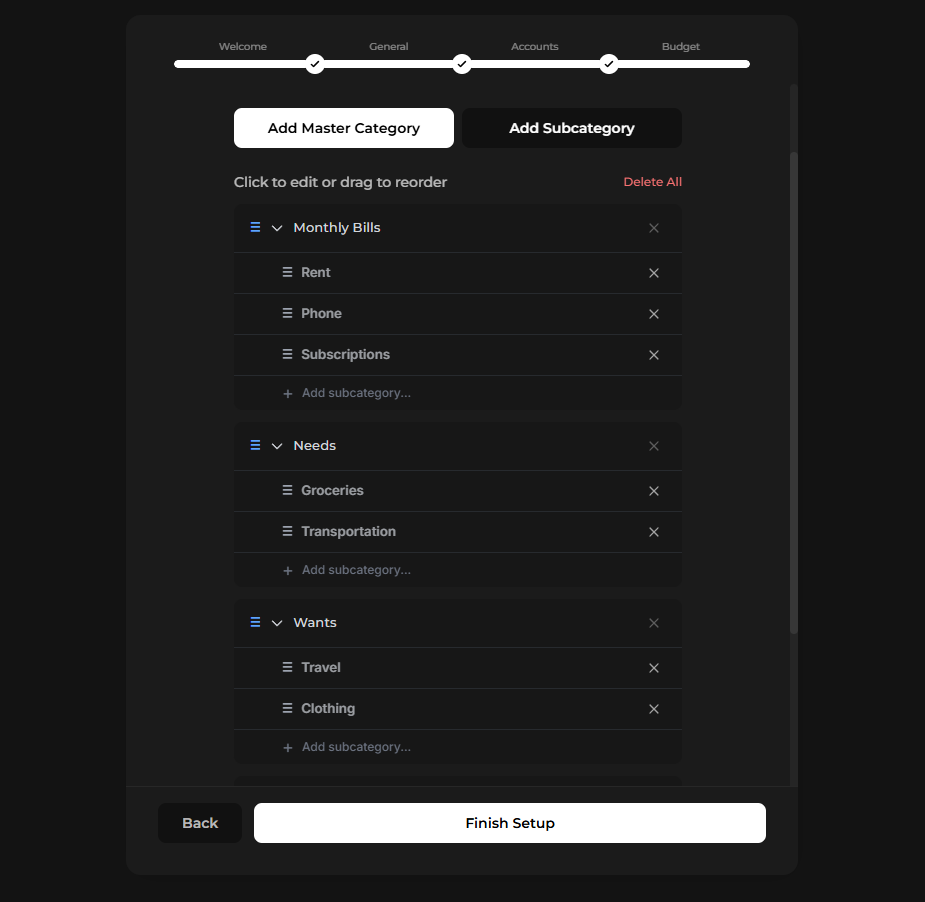
This step is where you build the structure of your envelope budget. Categories are organized in two levels:
- Master categories — top-level groupings used for organization (e.g. "Monthly Bills", "Needs", "Wants")
- Subcategories — the actual envelopes where spending is tracked (e.g. "Rent", "Phone", "Subscriptions")
Use the Add Master Category and Add Subcategory buttons to build out your structure. You can click any item to rename it, drag to reorder, and delete anything that doesn't apply.
Not sure where to start?
Click Suggest Categories to get a ready-made framework based on common spending patterns — categories like monthly bills, needs, and wants — that you can customize from there.
Take your time with this step. Think through what you actually spend money on each month and organize it in a way that reflects your real life. A category structure that matches your habits is one you'll actually stick to.
Categories can also be edited later directly from the Budget page, so don't worry about getting it perfect right away.
All Done
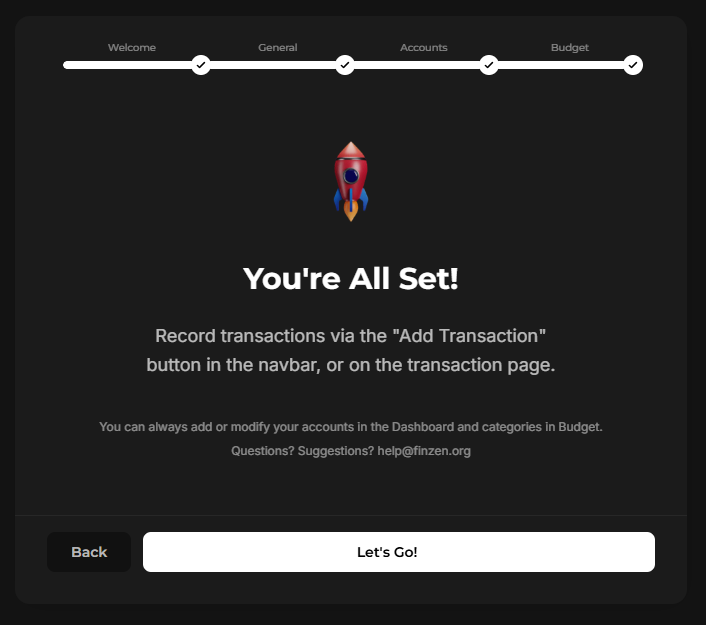
Once you've finished the wizard, Finzen is ready to go. Your accounts are in place, your categories are set, and your budget is waiting. Launch the app, set your monthly budget and start logging your transactions.
Made a mistake during setup? Go to Settings → Accounts and click Start Over. This resets your setup and lets you run through the wizard again from scratch.
Where to Go Next
- Interface — Get oriented with the main areas of the app
- Adding Accounts — Learn more about account types and how to manage them
- Envelope Budgeting — Understand the budgeting method behind Finzen
- Transactions — Start logging your first transactions