Managing Accounts
Accounts are the building blocks of Finzen. This page covers how to add, edit, and delete them.
What is an account?
In Finzen, an account represents any financial position you want to track — your checking account, a savings pot, a crypto wallet, a stock portfolio. You're not connecting to a bank or syncing data automatically. You create each account manually, give it a name, and enter a starting balance. From there, everything stays up to date through your daily transactions.
Think of accounts as named containers: wherever your money lives, there's a corresponding account in Finzen.
Adding an account
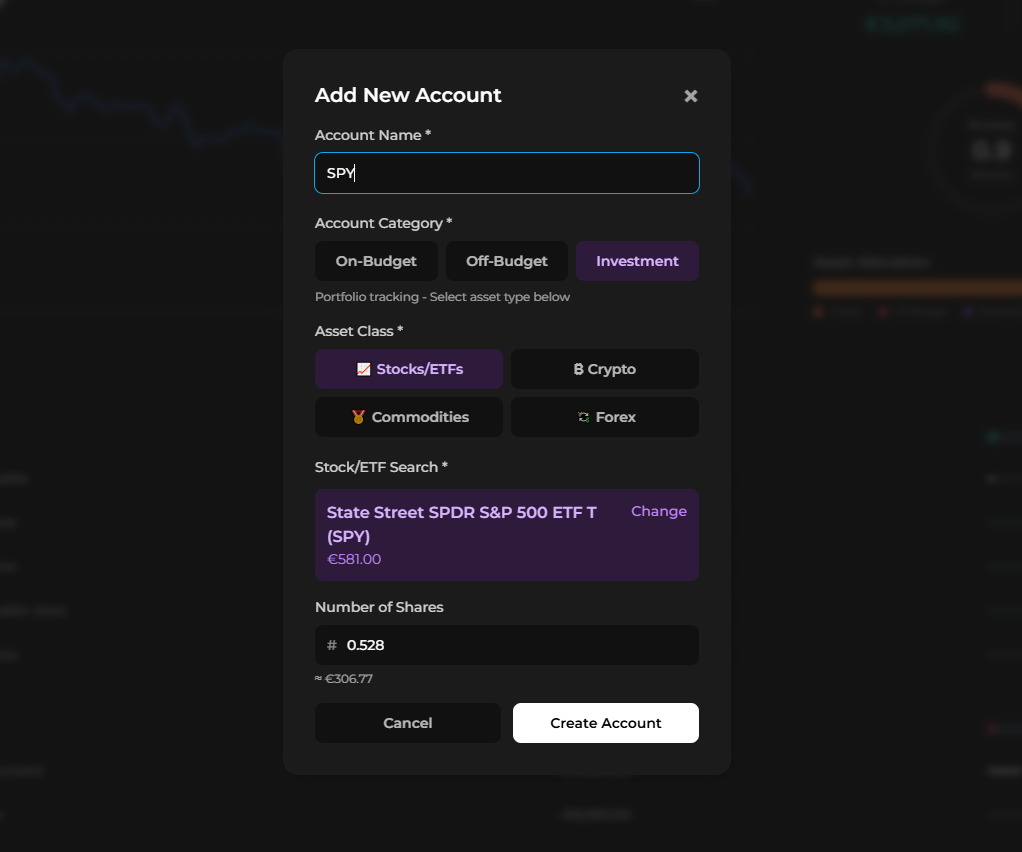
You can add accounts during the initial setup or at any time from your dashboard. Look for the Add Account button above your accounts list — it opens the same Add New Account dialog used during onboarding.
1. Name your account
Enter a name that matches what you call it in real life. Examples: Checking, PayPal, Cash, Coinbase, Robinhood. The name is just for your reference — it doesn't need to match anything official.
2. Choose an account category
Finzen has three account categories:
| Category | Best for | Affects budget? |
|---|---|---|
| On-Budget | Checking, cash, PayPal, neobanks | Yes |
| Off-Budget | Savings, loans, debt | No |
| Investment | Stocks, crypto, commodities, forex | No |
On-Budget accounts are your day-to-day spending accounts — their transactions feed directly into your envelope budget. Off-Budget accounts are tracked for net worth but kept separate from the budget. Investment accounts live in the portfolio section of the app.
See Budget Accounts and Investment Accounts for a deeper explanation of each type.
3. Select an asset class (investment accounts only)
If you selected Investment, choose the asset class this account holds:
- Stocks / ETFs — equities and exchange-traded products. Finzen supports 15,000+ stocks, 5,000+ ETFs, 10,000+ mutual funds, and 2,000+ futures. Search by ISIN (most accurate), Ticker, or name.
- Crypto — 10,000+ cryptocurrencies
- Commodities — physical commodities: gold, silver, copper, and palladium. Unit: grams
- Forex — 150+ foreign exchange currency pairs
Once you select a class, a search field appears so you can find the specific asset. Select it, then enter the number of units (shares, coins, etc.) you hold — Finzen will calculate the current value automatically.
For On-Budget and Off-Budget accounts, there's no asset class selection — you go straight to setting the initial balance.
4. Set your initial balance
Enter the current balance of the account. The default is 0, but you should set it to the real balance so your tracking matches reality from day one.
Getting the initial balance right matters. If your checking account has $1,240 in it today, enter $1,240 — Finzen's numbers will be accurate immediately, and nothing will feel off as you start tracking.
Editing an account
To edit an account, open it from your accounts list and select the edit option. You can update the account name at any time.
Updating the balance
To correct or adjust an account's balance, select the balance directly. Enter the new current balance and save — Finzen automatically creates a matching adjustment transaction with the category Uncategorized – Balance to account for the difference, keeping your history consistent.
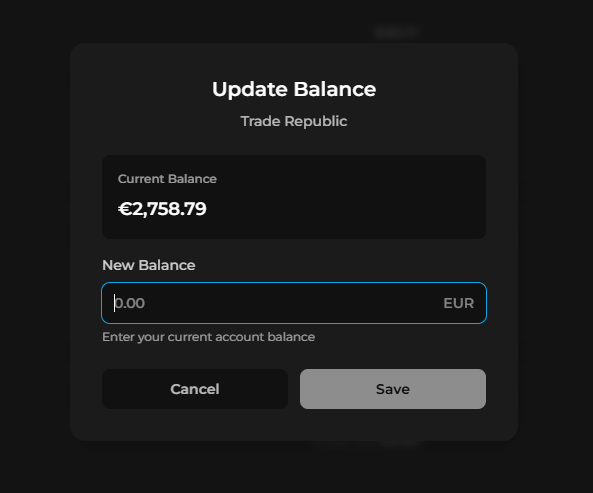
Balance adjustments are recorded as transactions so your history always reflects what changed and when.
Deleting an account
You can delete any account from its settings.
Deleting an account does not delete its transactions. They remain in Finzen but are reassigned to no account. If you no longer need them, you'll have to delete them manually.
Where to go next
- Budget Accounts — how on-budget and off-budget accounts work
- Investment Accounts — setting up and tracking your investment positions