Managing Your Budget
The budget page is where you assign money to envelopes, track your spending, and stay in control month by month. This page covers everything you need to know to use it effectively.
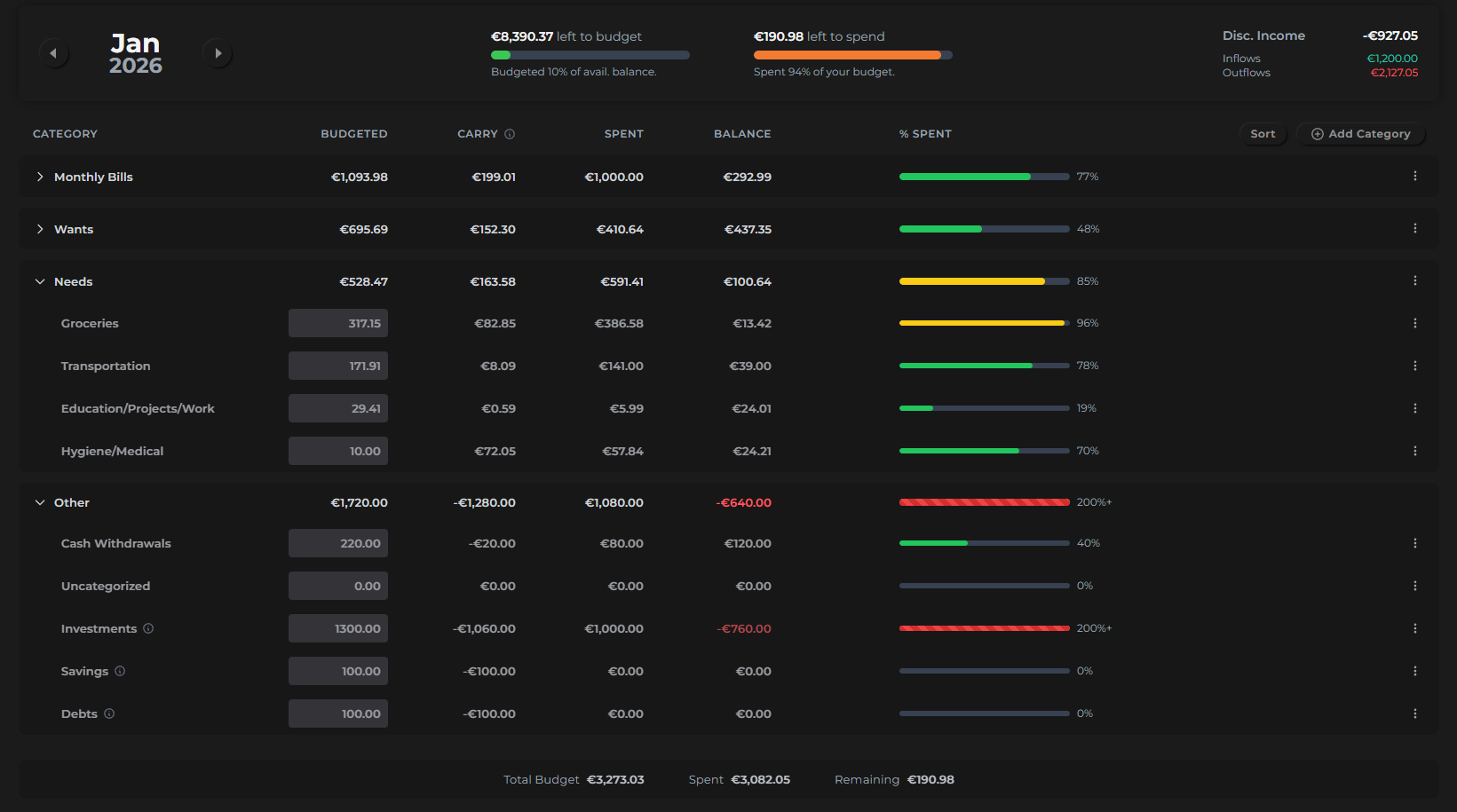
The Budget Header
At the top of the budget page, three key numbers give you an instant snapshot of your financial standing for the month.
Left to Budget
How much money sitting in your budget accounts hasn't been assigned to an envelope yet. This is the money waiting for a job.
Aim to keep Left to Budget at zero — every dollar should be allocated somewhere. Unassigned money is money without a plan.
Left to Spend
The total remaining balance across all your envelopes — your budgeted amounts minus what you've already spent this month.
Discretionary Income
Your total inflows minus outflows for the current month. This tells you at a glance whether you're ahead or behind financially — positive means you've earned more than you've spent, negative means the reverse.
Navigating Months
Use the month selector in the top left to move between months — past or future.
- Past months are fully accessible and editable. You can adjust budgeted amounts after the fact if needed.
- Future months are also editable, making it easy to plan ahead.
When you navigate to a future month for the first time, each envelope is pre-filled with the amount spent in that category last month as a convenient starting point. You can adjust any amount before the month begins.
The Budget Table
The main table lists all your envelopes, organized under collapsible master categories. Click any master category to expand or collapse the subcategories inside.
Each row in the table shows:
| Column | What it means |
|---|---|
| Category | The envelope name. Master categories are collapsible; subcategories are nested inside. |
| Budgeted | The amount you've planned for this envelope this month. Editable for subcategories; totaled automatically for master categories. |
| Carry | Overspend or remaining budget carried over from last month — positive if you had leftover, negative if you overspent. |
| Spent | How much has been logged against this envelope so far this month. |
| Balance | What's left in the envelope, after accounting for carry and spending. |
| % Spent | How much of the envelope has been used — useful for spotting categories that are running low early in the month. |
If you spend more than an envelope holds, the Balance goes negative and the row is highlighted. The overspent amount is reflected in the Carry column next month, reducing your starting balance.
Adding Categories
Click the Add Category button above the table (top right) to create a new envelope.
You can add either:
- A master category — a top-level group (e.g. "Housing", "Food", "Fun")
- A subcategory — an envelope inside an existing master category (e.g. "Groceries" under "Food")
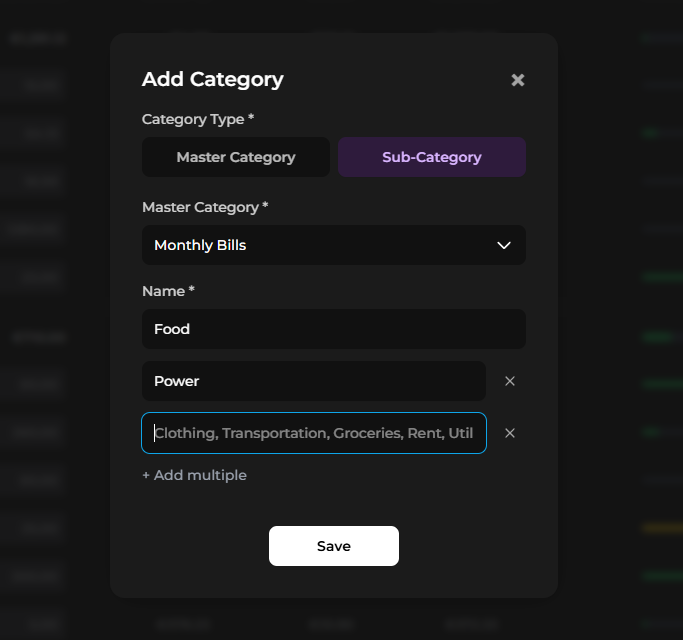
Your categories should reflect how you think about spending. There's no right answer — some people use broad categories (Food), others prefer specific ones (Groceries, Restaurants, Coffee).
Reordering Categories
Click the Sort button (next to Add Category) to enter sort mode. In sort mode, you can drag and drop master categories and subcategories to reorder them however you like.
The order you set here is the order they appear in the table — and in spending reports.
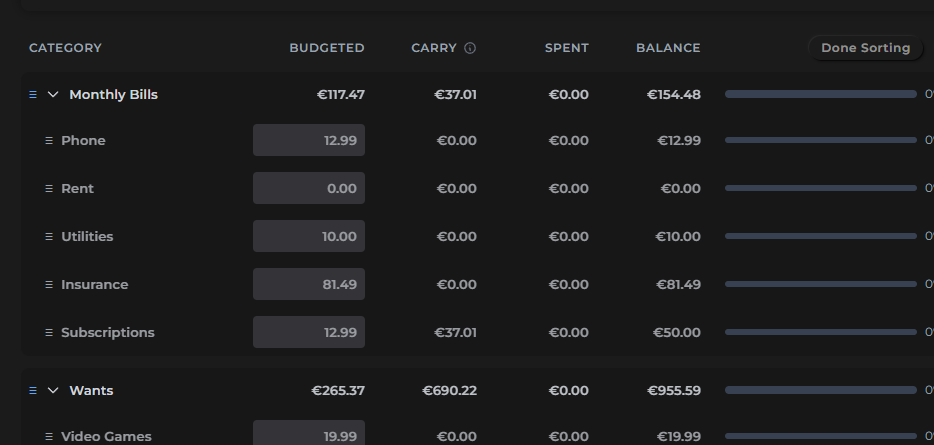
Default Categories
When you first set up Finzen, a small set of default categories are created automatically. These are the categories the app uses internally:
| Category | Purpose |
|---|---|
| Savings | For money you're setting aside |
| Debts | For tracking debt repayments |
| Investments | For transfers to investment accounts |
| Uncategorized | A catch-all for transactions that haven't been categorized yet |
All four default subcategories live under a master category called Other. Beyond these, your budget is a blank canvas — add whatever categories match your life.
Any transaction logged without a category is automatically placed in Uncategorized. Check this envelope regularly and move transactions into the right category to keep your budget accurate.
How Rollover Works
Finzen automatically carries unused balances (and overspending) forward each month via the Carry column.
- Under-budget: If you budgeted $200 for Groceries and spent $150, the $50 surplus carries into next month — giving you a $50 head start before you even set a budget amount.
- Over-budget: If you spent $230 against a $200 budget, the -$30 overspend carries forward, reducing your starting balance next month.
This rollover behavior rewards disciplined months and gently flags areas where spending consistently exceeds the plan.
Let occasional surplus build up in envelopes for irregular expenses — like a Car Maintenance envelope that accumulates month by month until you need it. Or save up for a new GPU by budgeting 20$ a month.